




minimun desktop env install part
apt update
apt install --no-install-recommends xorg lightdm icewm
apt install vainfo intel-media-va-driver mesa-va-drivers i965-va-driver
add user part
sudo adduser gamer
sudo usermod -aG audio,video,sudo gamer
sudo nano /etc/lightdm/lightdm.conf
[Seat:*]
autologin-user=gamer
moonlight install part
apt install flatpak
flatpak remote-add --if-not-exists flathub https://flathub.org/repo/flathub.flatpakrepo
flatpak install flathub com.moonlight_stream.Moonlight
- backup moonlight config file avoid repairing to Gforce experience
dir: ~/.var/app/com.moonlight_stream.Moonlight/config/Moonlight Game Streaming Project/Moonlight.conf
cd ~/.var/app/com.moonlight_stream.Moonlight/config/"Moonlight Game Streaming Project"/Moonlight.conf
- the folder name with space should use “” cover
audio part
apt install pulseaudio pavucontrol xdg-desktop-portal
systemctl --user daemon-reload
systemctl --user start pulseaudio

systemctl --user status pulseaudio
flatpak install other app such as chrome
search chrome
flatpak search chrome
- output
Name Description Application ID Version Branch Remotes
Google Chrome (unstable) The web browser from Google com.google.ChromeDev 141.0.7367.0-1 stable flathub
Google Chrome The browser built to be yours com.google.Chrome 139.0.7258.138-1 stable flathub
…
…
install
flatpak install flathub com.google.Chrome
GNOME Software part (similar as mintlinux software manager)
- First, update your package list
sudo apt update
- Install GNOME Software and the critical Flatpak plugin
sudo apt install gnome-software gnome-software-plugin-flatpak
- (Optional but Recommended) Install a file manager and other integration bits.
- This makes the “Open With” and other context menus work better.
sudo apt install nautilus
enable keyboard function key
sudo apt install alsa-utils pulseaudio-utils inotify-tools xbindkeys
mkdir -p ~/.bin
chmod +x ~/.bin/volume-control.sh
nano ~/.bin/volume-control.sh
#!/bin/bash
Script to control volume via command line
nano ~/.xbindkeysrc
case "$1" in
    up)
        pactl set-sink-volume @DEFAULT_SINK@ +5%
        ;;
    down)
        pactl set-sink-volume @DEFAULT_SINK@ -5%
        ;;
    mute)
        pactl set-sink-mute @DEFAULT_SINK@ toggle
        ;;
    *)
        echo "Usage: $0 {up|down|mute}"
        exit 1
        ;;
esac

exit 0
Volume Up
“$HOME/.bin/volume-control.sh up”
XF86AudioRaiseVolume
Volume Down
“$HOME/.bin/volume-control.sh down”
XF86AudioLowerVolume
Mute
“$HOME/.bin/volume-control.sh mute”
XF86AudioMute
nano ~/.icewm/startup
xbindkeys &
Restart Your Desktop Session or reboot the host
add font
sudo apt install ttf-mscorefonts-installer fonts-noto-core fonts-noto-cjk fonts-noto-color-emoji
sudo apt install fonts-freefont-ttf fonts-liberation fonts-dejavu fonts-opensymbol
sudo apt install fonts-wqy-microhei fonts-wqy-zenhei
sudo fc-cache -f -v
Full desktop install
sudo apt update
sudo apt install task-xfce-desktop
sudo apt install task-kde-desktop
sudo apt install task-mate-desktop
- remove Networkmanager service immediately otherwise the service will damage the host network
Stop the NetworkManager service immediately
sudo systemctl stop NetworkManager
Disable it from starting at boot
sudo systemctl disable NetworkManager
Mask it to prevent it from being accidentally started by other services
sudo systemctl mask NetworkManager
Restart the proven, working networking service
sudo systemctl restart networking
solve the dns problem after Networkmanage removed
sudo rm /etc/resolv.conf
echo "nameserver 8.8.8.8" | sudo tee /etc/resolv.conf
echo "nameserver 1.1.1.1" | sudo tee -a /etc/resolv.conf
Make the File Immutable
sudo chattr +i /etc/resolv.conf
steamlined
sudo apt install task-xfce-desktop \
 && sudo systemctl stop NetworkManager \
 && sudo systemctl disable NetworkManager \
 && sudo systemctl mask NetworkManager \
 && sudo rm /etc/resolv.conf \
 && echo "nameserver 8.8.8.8" | sudo tee /etc/resolv.conf \
 && echo "nameserver 1.1.1.1" | sudo tee -a /etc/resolv.conf \
 && sudo systemctl restart networking
⚠️ Risks & Warnings
Before installing a desktop on Proxmox VE, consider these points:
Hypervisor Stability
Proxmox is designed as a lean hypervisor. Adding Xorg, LightDM, and full desktops increases complexity and can affect system updates or introduce new vulnerabilities.
Networking Risks
NetworkManager conflicts with Proxmox’s bridge networking. Always disable/mask it after desktop installation.
Locking /etc/resolv.conf (chattr +i) prevents DNS overwrites, but it also blocks legitimate changes (DHCP, VPN, cluster).
Security Exposure
Running browsers (Chrome) or Moonlight on the host exposes it to user-space exploits. Normally, Proxmox hosts are hardened and run no desktop apps.
System Overhead
Full desktops (especially KDE) pull in many unnecessary services (Bluetooth, Avahi, CUPS) that consume RAM/CPU. XFCE is the lightest choice.
Storage Usage
Fonts, Flatpak runtimes, and desktop packages consume space on / (which is often small in PVE installs). If / is on ZFS, this also inflates snapshot/backup size.
Recommendation
For long-term stability:
Run Moonlight/Chrome inside a VM or container instead of on the host.
Keep the host minimal and dedicated to virtualization.
If you must run a desktop on the host, use a lightweight option (XFCE) and monitor system logs/resources.
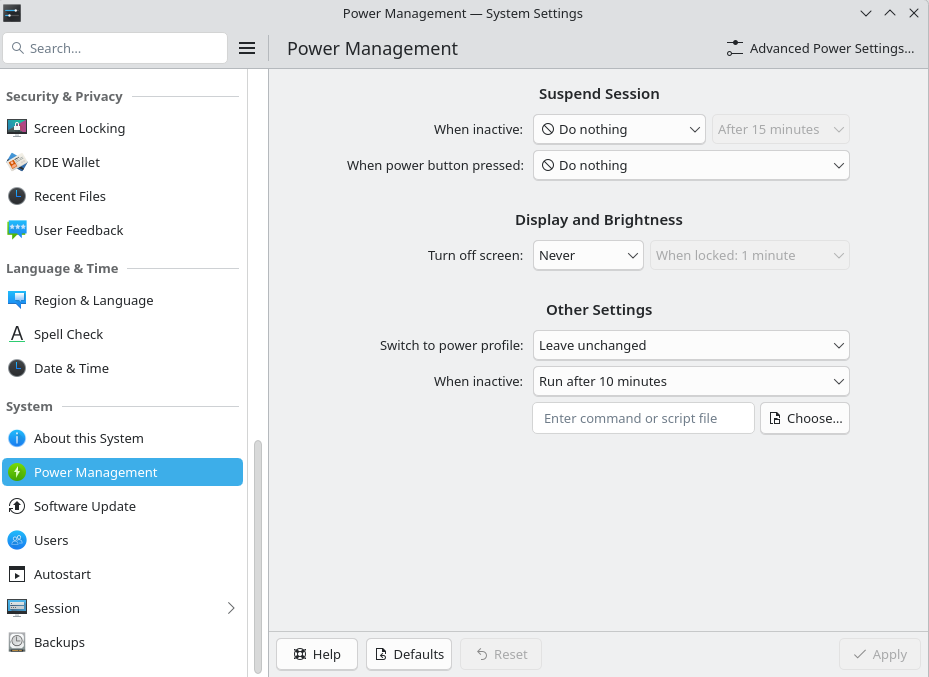
Disable power save
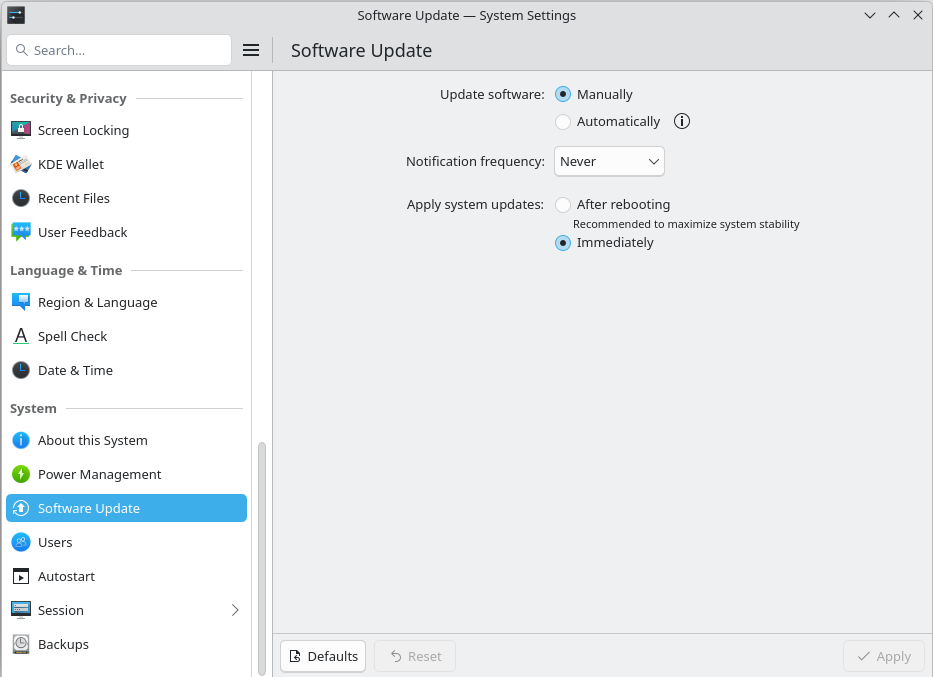
Disable auto update
restart the desktop from hibernation
systemctl restart lightdm
Turn OFF the Desktop
systemctl stop lightdm
systemctl set-default multi-user.target
What this does:
- stop lightdm: Stops the graphical login manager, which kills Xorg and all GUI apps.
- set-default multi-user.target: Makes your system boot headless (no desktop) by default.
- You’ll stay in a text console (tty) and Proxmox web UI remains accessible over the network.
- Your iGPU will no longer be in use by Xorg, making passthrough to a VM possible.
Check which processes are using the GPU
lsof /dev/dri/*
- If nothing is using the GPU, this should return no output.
- If you see processes like Xorg or gnome-shell, the desktop isn’t fully stopped.
Turn ON the Desktop Again
systemctl start lightdm
systemctl set-default graphical.target
What this does:
- Starts LightDM and your graphical session again.
- Sets the system to boot to the desktop by default.
Quick One-Time Switch
If you just want to temporarily switch modes without changing defaults:
# Go headless (no GUI)
systemctl isolate multi-user.target

# Go back to desktop
systemctl isolate graphical.target
- This doesn’t change boot defaults, it only switches the current session.
| Action | Command |
|---|---|
| Stop desktop (headless) | systemctl stop lightdm && systemctl set-default multi-user.target |
| Start desktop | systemctl start lightdm && systemctl set-default graphical.target |
| Quick switch (no default change) | systemctl isolate multi-user.target or systemctl isolate graphical.target |
batch deploy
sudo apt install --no-install-recommends xorg lightdm icewm slim vainfo intel-media-va-driver mesa-va-drivers i965-va-driver flatpak pulseaudio pavucontrol xdg-desktop-portal task-kde-desktop gnome-software gnome-software-plugin-flatpak nautilus alsa-utils pulseaudio-utils inotify-tools xbindkeys
Using Ctrl + Alt + F2 switch back the pve cli console after stop lightdm by
systemctl stop lightdm
| Key combo | Switches to |
|---|---|
Ctrl + Alt + F1 |
tty1 (CLI) |
Ctrl + Alt + F2 |
tty2 (CLI) |
Ctrl + Alt + F3–F6 |
other ttys |
Ctrl + Alt + F7 |
back to GUI (if LightDM running) |
- What “tty” means
tty stands for Teletypewriter — a term from old mainframe days when people used physical terminals (keyboards + screens or paper printers) connected to a computer.
In modern Linux, “tty” refers to a virtual terminal (text console) where you can log in and interact with the system — basically a command-line interface (CLI).
- Virtual consoles in Linux
When your system boots, the Linux kernel automatically creates several virtual text consoles, typically tty1 through tty6.
Each corresponds to a different text login screen.
You can think of them like tabs for CLI sessions that run in parallel, except they’re on different key combos:
| Virtual terminal | Access keys | Typical usage |
|---|---|---|
tty1 |
Ctrl + Alt + F1 |
Default system login console |
tty2 |
Ctrl + Alt + F2 |
Another CLI console |
tty3–tty6 |
Ctrl + Alt + F3–F6 |
Extra CLI sessions |
tty7 |
(or sometimes tty1 on newer distros) |
Usually used by graphical desktop (LightDM/Xorg) |
- How LightDM fits in
When you start LightDM:
- It launches on a specific virtual terminal (often tty7).
- That terminal is taken over by the graphical X server (no text login there anymore).
- Your keyboard/screen are bound to that X session.
When you stop LightDM:
- The graphical session ends.
- Nothing replaces it on tty7.
- So you just see the last framebuffer output (frozen screen).
Meanwhile, tty1–tty6 are still running quietly in the background, waiting for you to switch to them (Ctrl+Alt+F2, etc.).
- To summarize
| Concept | Description |
| -------------------------- | ----------------------------------------------------------------------------------- |
| tty | A text-based terminal device (real or virtual). |
| tty1–tty6 | Text consoles with login prompts (viagetty). |
| tty7 | Usually used for GUI session (LightDM/Xorg). |
| Ctrl+Alt+Fn | Switch between them. |
| systemctl stop lightdm | Stops GUI (Xorg on tty7), leaving that VT blank until you switch back to a CLI tty. |
Add Pingyin input
sudo apt-get install fcitx im-config
im-config ## choose fcitx
sudo apt-get install fcitx-googlepinyin
#choose fcitx keyboard icon, choose “Text Entry Setting”
#in the opned windows, click “+” icon
#search “pinyin” and Google Pinin" will come out
#if cannot not be used immediately, log out once
评论区