




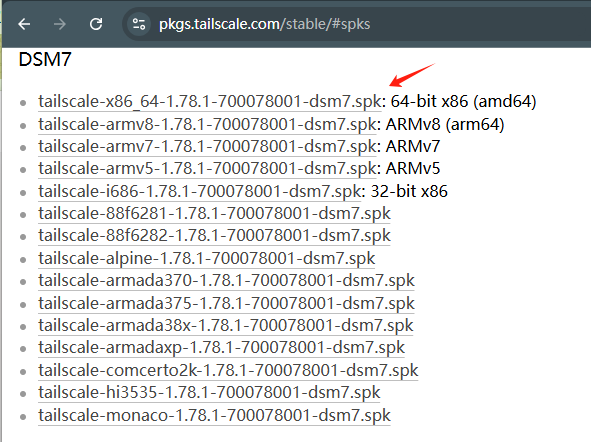
download tailscale package
https://pkgs.tailscale.com/stable/#spks
Schedule automatic updates
You can create a scheduled task to check for Tailscale client updates and install them automatically.
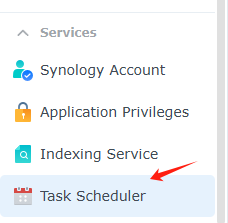
1, In Synology, go to Control Panel > Task Scheduler, select Create, and select Scheduled Task.
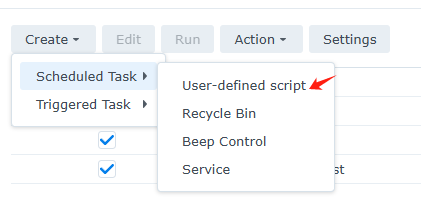
2, Select User-defined script.
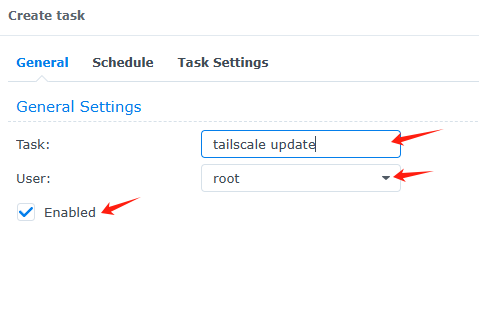
3. In the General Settings tab, enter a task name and select the User: as root.
4. Go to the Schedule tab, select Run on the following days, then Run on the follow days, and choose an increment such as Daily.
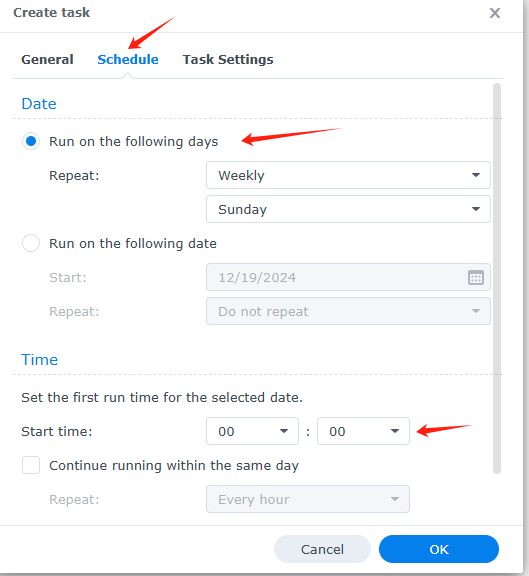
5, Go to the Task Settings tab and enter the following for User-defined script:
tailscale update --yes
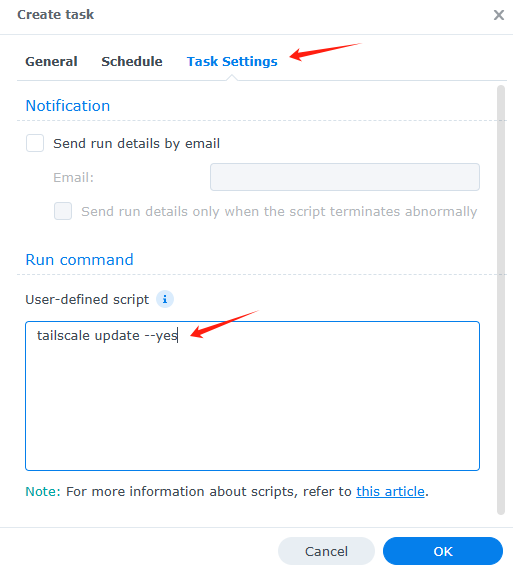
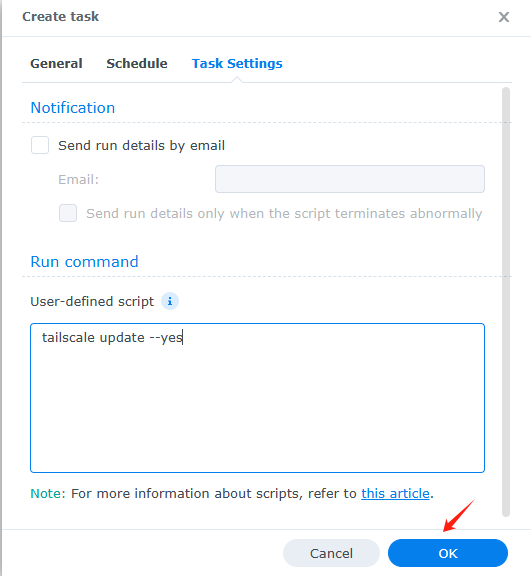
6, Select OK to save the settings.
Enable outbound connections
Synology DSM7 introduced tighter restrictions on what packages are allowed to do. If you’re running DSM6, Tailscale runs as root with full permissions and these steps are not required.
By default, Tailscale on Synology with DSM7 only allows inbound connections to your Synology device but outbound Tailscale access from other apps running on your Synology is not enabled.
The reason for this is that the Tailscale package does not have permission to create a TUN device.
To enable TUN, to permit outbound connections from other things running on your Synology device:
Make sure you’re running Tailscale v1.22.2 or later
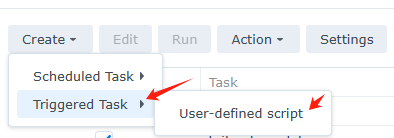
In Synology, go to Control Panel > Task Scheduler, select Create, and select Triggered Task.
Select User-defined script.
When the Create task window appears, select General.
In General Settings, enter a task name, select root as the user that the task will run for, and select Boot-up as the event that triggers the task. Ensure the task is enabled.
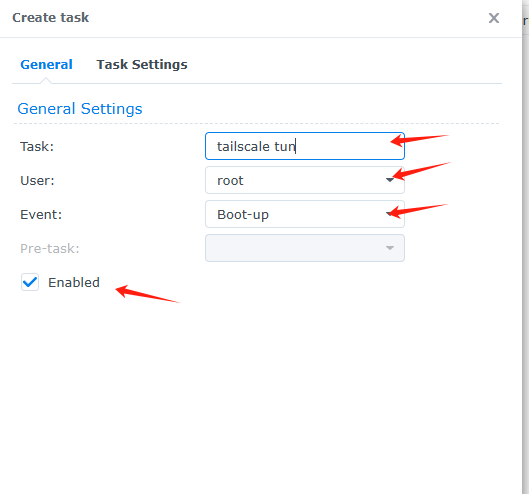
Select Task Settings and enter the following for User-defined script.
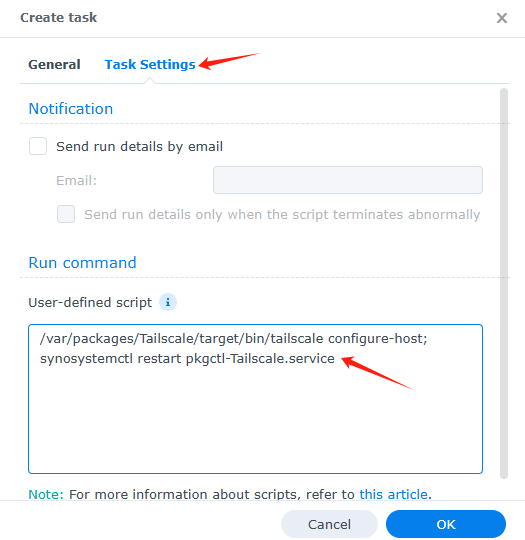
/var/packages/Tailscale/target/bin/tailscale configure-host; synosystemctl restart pkgctl-Tailscale.service
If you’re curious what it does, you can read the configure-host code.
Select OK to save the settings.
Reboot your Synology device. Alternatively, to avoid a reboot, run the above user-defined script as root on the device to restart the Tailscale package.
Your TUN settings should now be persisted across reboots of your device.
refer from: https://tailscale.com/kb/1131/synology#enable-outbound-connections
评论区